Sketch and Prototype Tools Review - Part 3 - Microsoft Office Visio 2010
As a software designer and web developer I usually focus on the back end of web sites and applications and leave the User Interface and UX design to people more knowledgeable. Still, occasionally I have the need to do some sketching and drawing with a customer, for example when designing a web interface or when working on use case documents. While paper and pencil often work fine, they lack durability. Additionally, the result is hard to share, especially with "digital" clients or clients in a different country. Over the years, I've been working with a number of software design tools to aid me in this process. Since I get asked which tools I use every now and then, I decided to write a short blog series outlining a number of these tools, including Balsamiq Mockups, Axure RP Pro, Microsoft Visio with the 'GUUUI Sketchy GUI Shapes' stencil, Pencil, and Microsoft's Sketchflow.
In this series I'll be (re)creating a design mockup for the Management section of my web site with each of the tools, giving you the opportunity to compare their output. You'll find a screen shot of the existing Management section at the end of this article.
Today's tool: Microsoft Office Visio 2010.
Introduction
Microsoft Office Visio 2010 is part of the Microsoft Office 2010 suite, although it can be purchased and used separately. It's an advanced diagramming tool that enables you to create a wide range of diagrams, including (but certainly not limited to):
- Flowcharts
- Maps and floorplans
- Audit diagrams
- Brainstorm diagrams
- Organization charts
- Network diagrams
- Engineering / electrical diagrams
- Schedule charts (Gantt, PERT, etc)
- UML diagrams (with code generation)
- Database diagrams
- And of course, considering the topic of this article: Web Site Maps and Wireframe diagrams
Microsoft Office Visio has been part of the Office suite for quite some time. However when Office 2007 was released, Visio didn't get the new Ribbon bar interface. That has now been corrected in the 2010 release, giving Microsoft Office Visio 2010 the familiar Office look, shown in Figure 1 (click for a larger version).
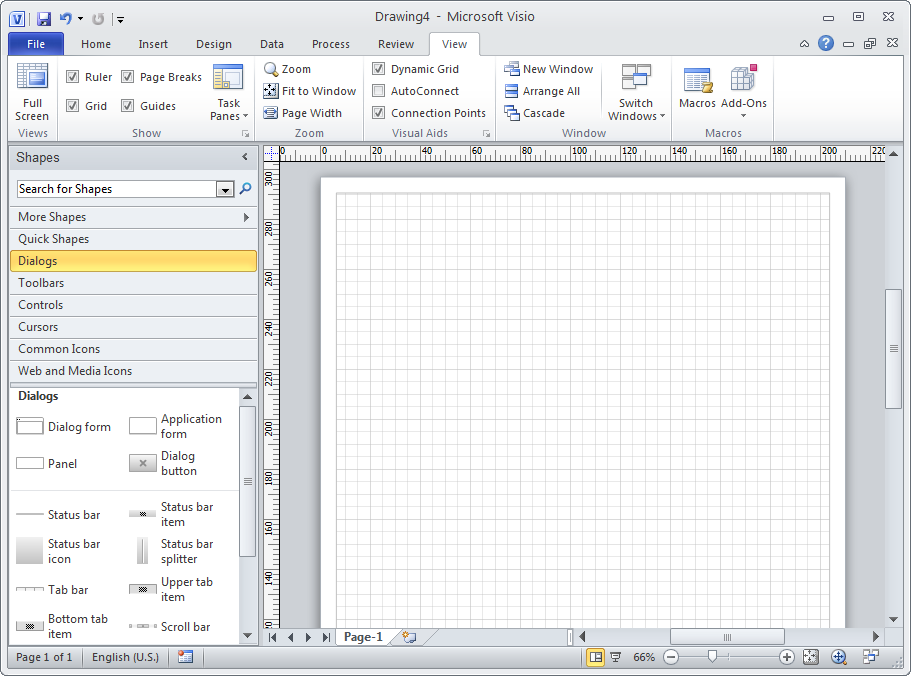
Figure 1 - The Main Screen of Microsoft Office Visio 2010
Because it looks so much like other Office applications, it's pretty easy to get started with Visio. To help you jump start you diagram, you can choose among tens of different diagram templates when you create a new document. The options you choose here mostly determine the different kind of stencils - a collection of controls and other UI elements that are specific to the diagramming type- that are loaded by default. Once you've chosen a diagram type, you can load stencils from other types by clicking More Shapes shown in Figure 1. This pops up a menu that lets you choose from preloaded shapes and gives you an option to load new ones. Below the More Shapes item you see a number of other stencils that are loaded with the Wireframe diagram including the open Dialogs stencil that shows a number of dialog related shapes.
Although Microsoft Office Visio 2010 ships with a large amount of features, there are a few things missing. The Wireframe Diagram is designed to create "medium-fidelity diagrams for software application prototyping and design. Being "medium", it lacks the high detail that Axure gives you and at the same time doesn't give you that sketchy look that Balsamiq has. Fortunately, Henrik Olsen from www.guuui.com has created a Visio stencil with sketchy shapes, and some interesting scrolling behavior that Visio does not have by default. You can find the shapes and a detailed article about using them from the article Visio - the interaction designer's nail gun (3rd edition). Once you have the stencils installed you get a stencil looking like this (click for a larger version):
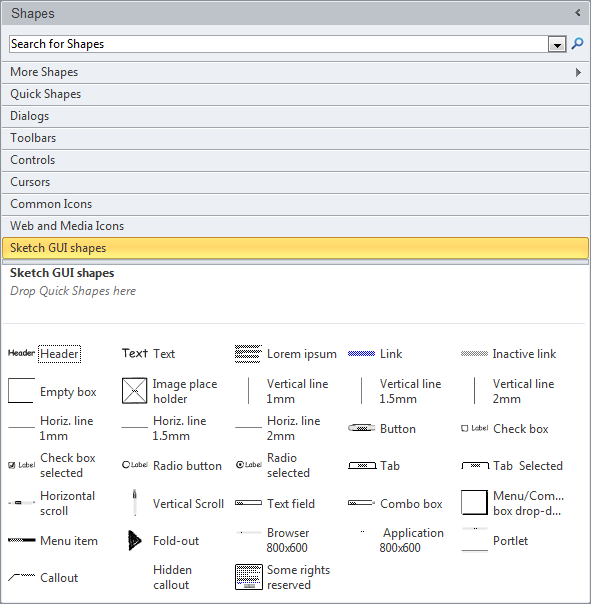
Figure 2 - The Shapes Panel in Visio 2010 Showing the Sketchy GUI Shapes
These shapes in turn enable you to create diagrams that look like they are hand drawn. For example, in Figure 3 you see a part of the final screen with the main tabs:

Figure 3 - An example of Tabs created with the Sketchy GUI Shapes
Although Visio has a lot of power, I didn't find it very easy to create the final diagram shown in Figure 5. Part of that is caused by the Sketchy GUI Shapes that make working with the shapes on the design surface pretty difficult. Especially when items are grouped or very close to each other, they are very hard to select. I sometimes needed 17 clicks to select something which normally takes only a single click. Clearly, that's pretty frustrating, so I think Microsoft Visio with the Sketchy GUI Shapes is this week's number one in the list of "tools that made me swear and curse and smash my keyboard". I think the problem is being caused by the Sketchy GUI Shapes as I never had problems like this when working with Visio in other types of diagrams or stencils.
Another issue I found with Visio is the limited set of available shapes and their behavior. For example, Visio has a Tree control (used to create the left navigation in Figure 5) but it takes forever to create as you need to add each item manually. Once it's added, it takes another step to indent it at the right level and yet another to change the plus icon to a minus icon. You also can't modify the icons yourself. I really miss the behavior of the Tree or List controls from Balsamiq that let you create a list or tree-like structure in seconds and even enable you to copy and paste elements from a text source. I would trade the Visio tree for the one from Balsamiq any time!
Fortunately, Visio has a lot of strengths as well. Here's a quick list of the stuff I like about the program from the perspective of a Wireframe designer:
Features I like
- Easy to use and intuitive interface, especially when you are already familiar with Microsoft Office.
- Lots of Office features at places where it's welcome (but sometimes unexpected) such as a spell checker for the text in the shapes.
- Unlike some of the controls that ship with the Sketchy UI Shapes, many of the controls have smart behavior that help you creating or shaping controls. For example, adding a new tab to the Tab bar is really easy. Just hover your mouse over the edge of the first or last item and a small glyph appears that you can click to add an item to the left or right. Likewise, connecting shapes with the Many other controls have similar features.
- The sitemap feature that enables you to create a sitemap with pages that you can link to the various mockups in the Visio diagram. Not as useful as Axure's sitemap though that lets you create the map based on the wireframes in your project. In Visio, sitemaps and wireframes are pretty unrelated by design and get connected to each other by creating basic links between them.
- It's easy to mix different diagrams which enables you to reuse shapes from completely different diagram types.
- Lots of export options including many bitmap types (BMP, JPG, PNG and so on), XPS and PDF (although PDF is pretty buggy and creates broken mockups when using the Sketchy GUI Shapes), and SVG and AutoCAD types.
- Linking between shapes and pages is, although pretty limited, very easy to do. When you define multiple links for the same shape, you get a popup with the different choices when viewing the prototype in the browser. This enables you to create limited If / Then scenarios (visit a Login Failed or a Login Succeeded page from a Login action button for example).
- Export to HTML works well. You get a collection of all the pages in your document. Additionally, you get a sidebar that has options to quickly navigate to specific pages in the site. The sidebar also shows the meta data associated with mockups and shapes.
Things to Wish For
- It would be handy if Visio shipped with the chrome for a web browser interface so you can jump start a wireframe that looks like it's placed in a web browser. You can use the Sketchy GUI Shapes for that, but a built-in type would have been nice. The same goes for other type of applications such as iPhone or more general mobile phone applications.
- A better Grid control like the one Balsamiq has. The Grid control is almost impossible to work with. I tried to use it to create the table based layout with the categories shown in Figure 5 but gave up after a while. It took me way too long to set up the columns with the size I wanted, couldn't easily resize whole columns and I couldn't add controls to the cells. It might very well be a usable control, but I just couldn't make it work.
- Export to HTML is pretty cumbersome and requires many clicks to export as you need to change the export type every time you save. It also doesn't remember the last chosen export folder and defaults to some folder based on some top secret heuristics. Viewing the mockup in a browser as HTML takes at least 7 clicks, whereas I can do the same in Axure with two key strokes (F5, followed by Enter).
- I don't understand why dragging one of the corners of a control on the design surface resizes it while maintaining aspect ratio. I think it's common behavior to allow a free format resize when dragging one of the four corners and pressing an additional key (like Alt or Shift) forces the resize with aspect ratio. In Visio it's exactly the other way around which is pretty confusing at first.
- Programmability is really missing. Microsoft is very good at creating tools for developers so I am sure they could have added programmability support to Visio giving it the power that Axure has. Unfortunately, that's not the case. When it comes to dynamic diagrams, you're pretty much limited to linking.
- The Shapes Search should enable you to search for partial matches. E.g. bo should bring up boxes and borders. Currently, nothing shows up when you search for bo.
The End Result
Which each of the tools I am reviewing, I am creating a mockup of the page in the Administration section of my web site that enables me to manage content categories. The page looks like this (click the image to get a bigger version):
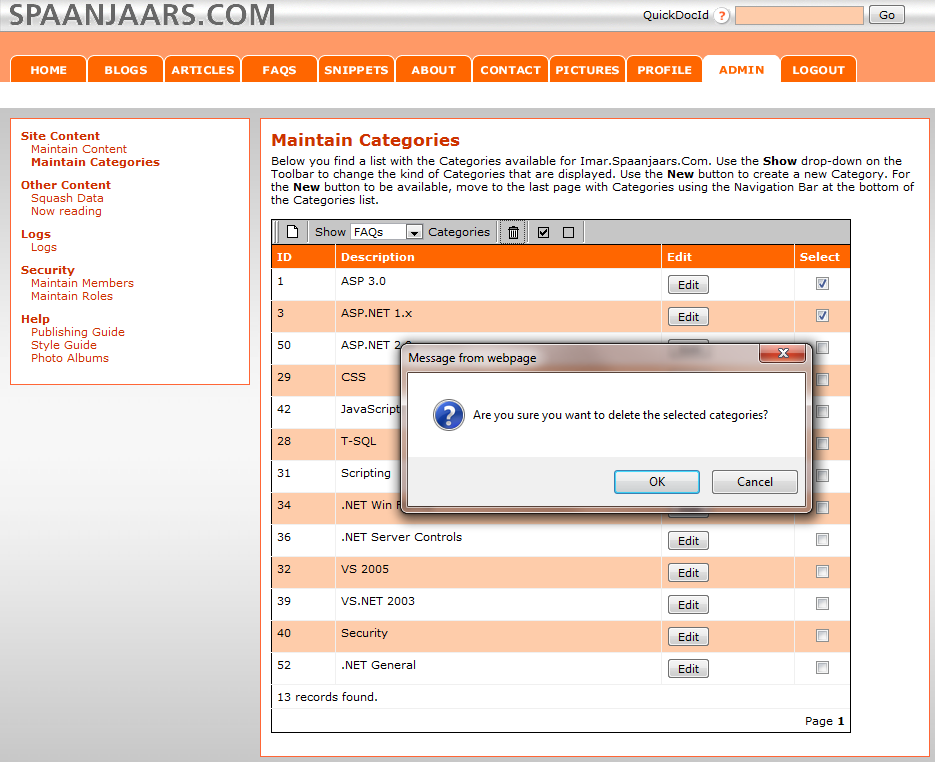
Figure 4 - The Management Section of Imar.Spaanjaars.Com
Using Microsoft Office Visio 2010, I ended up with the follow mockup (click the image to get a bigger version):
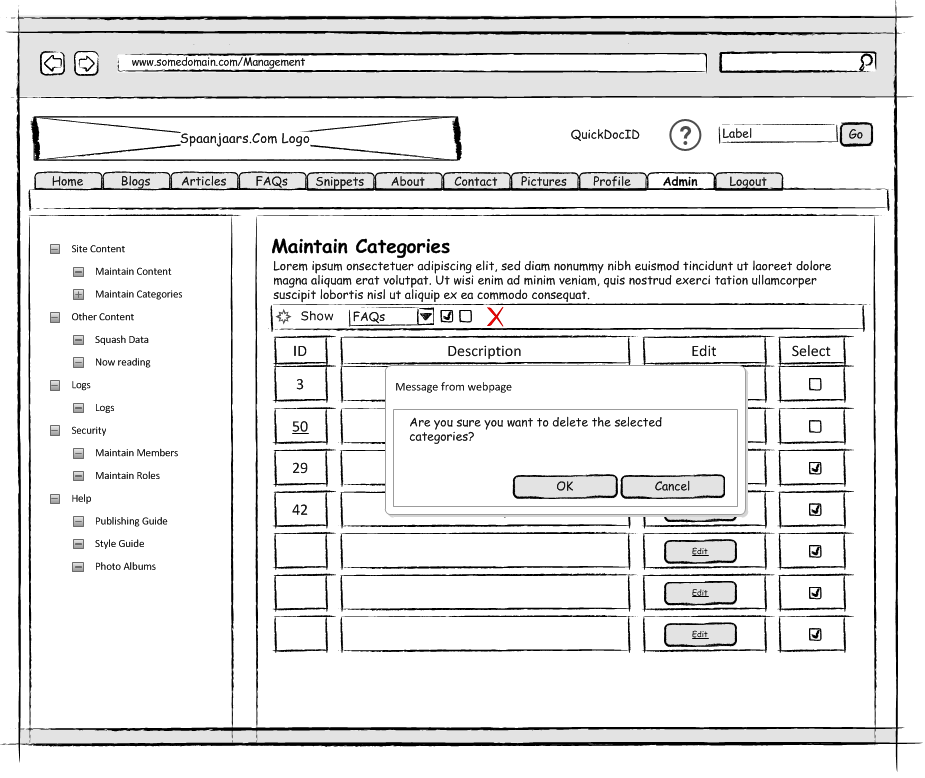
Figure 5 - The Final Result in Microsoft Office Visio 2010
In addition to a static screen shot, you can also try out a live version of the Prototype here. On the first page you see the site map. You can click on the blue Manage Categories item to display the management section with the categories. Clicking on the Delete button on the toolbar pops up the alert box shown in Figure 5. Clicking OK or Cancel then takes you back tot the categories list.
Summary
There are a lot of compelling features in Microsoft Office Visio 2010 that make it an excellent and versatile diagramming tool. However, I don't think I would recommend it for wireframe diagramming alone. Considering the price for Visio, you can get better tools for your money (Axure or Balsamiq, for example, depending on your budget and requirements). However, if you already have Visio or intend to use many of the other diagrams as well, it's worth considering. It creates reasonable wireframes and is pretty easy to use (if you don't use the Sketchy GUI Shapes). Although I like the looks of the GUUUI Sketchy GUI Shapes a lot, they are somehow really difficult to work with. For quick drawing they are great, but I got pretty frustrated when using them for some time. I am not sure what exactly is causing the problem, or how to work around it.
Specs
| Price | Not known yet. The 2007 version costs between $337.00 (Standard version) and $740.00 (Professional version). Upgrades are available for a lower price. |
| URL |
Visio 2007: http://office.microsoft.com/en-us/visio/FX100487861033.aspx Visio 2010: http://www.microsoft.com/office/2010/en/visio/download.aspx |
| Trial available | Yes, at http://www.microsoft.com/office/2010/en/visio/download.aspx |
| Application Mode | Windows Desktop application with installer |
| Documentation |
Visio 2007: http://office.microsoft.com/en-us/visio/FX100649211033.aspx Visio 2010: No steady location yet |
| Instruction videos | http://office.microsoft.com/en-us/webcasts/HA102547391033.aspx |
Features |
|
| Linking | Yes, but pretty limited. Multiple links per shape are supported but you can't program behavior. |
| Exporting | Lots of different options, such as bitmaps, PDF, XPS, AutoCad and many more. |
| Run-time viewer and annotation options | Export to HTML enables you to view the prototype outside Visio. The side bar shows extra meta data about the shapes. There is no option to annotate or change the prototype. |
| Web Browser Control | Yes, through a third party stencil |
| Phone Support | Possibly, through a third party stencil. |
| Programmability (to change click behavior in presentation mode) | No |
| UI Types | Generic |
Links in this Document
| Doc ID | 535 |
| Full URL | https://imar.spaanjaars.com/535/sketch-and-prototype-tools-review-part-3-microsoft-office-visio-2010 |
| Short cut | https://imar.spaanjaars.com/535/ |
| Written by | Imar Spaanjaars |
| Date Posted | 06/01/2010 22:03 |