With the current implementation of the login mechanism, you would have to add
new users to the database directly. To do this, you'd need to download the database,
add the user and then upload the database again. Fortunately, Dreamweaver has
a few handy Server Behaviors that make adding a new user to the database very
easy.
Why Not Try
The first Server Behavior you need is the Insert Record behavior.
This behavior will generate all the necessary HTML and ASP code to insert a new
record in your database using an HTML form. In the book, a similar behavior,
the Record Insertion Form Wizard was used to insert a new record
in the Events table using an HTML page.
Its counterpart, the Record Update Form Wizard behavior, took
care of updating existing events in the database.
When you want to add a new user to your database, you're going to have one additional
hurdle to take: you have to make sure that the new user you want to insert, is
going to be unique. The column Name in the Users table
is used to uniquely identify a user, so you can't allow duplicates. Once again,
the developers of Dreamweaver has thought about this too, and created the second
behavior you need for this task: the Check New Username behavior.
This behavior checks in the database if the username you want to insert already
exists. If it does, it won't allow the new user to be inserted.
To successfully allow your users to sign up for your site, you'll have to perform
the following steps:
- Create a new HTML form that submits to itself
- Add fields for the username and password and a submit button to the form
- Add a Insert Record behavior that takes care of the database insert
- Add a Check New Username behavior to make sure you don't accidentally insert
the same username twice.
The rest of this article assumes you have followed along with the Soccer Site
project. If you don't own the book, don't worry. It'll be easy to follow along.
You won't get the same screens because you don't have the templates used in this
site, but everything will work as expected. If you want, you can even download
the necessary file for this article. You do have to set up a connection to your
database, though, because this article assumes you have a valid connection to
a Microsoft Access database on the Databases panel
in Dreamweaver.
Making Preparations for the Sign Up Page
The current database for TheSoccerSite has a little problem that hasn't
come up in the 7 Chapters of the book Beginning Dreamweaver MX. The column Password in
the Users table has in fact an illegal
name. Microsoft Access allows a column to be called Password when
you create it. This is not a problem for SELECT statements,
as you have seen in the login page, but it will cause problems when you use INSERT or UPDATE statements
through ADO. You'll see that when you pass the following SQL statement to
the database, you'll get an error:
INSERT INTO Users (Name, Password) VALUES('Imar',
    'TopSecret')
The column name Password is actually a
reserved word, although it's not officially listed on the Reserved
Words for Microsoft Access list. To fix this, you'll need to change the
column Password to UserPassword in
the database. If you have Microsoft Access installed, perform the following
steps to change the database TheSoccerSite.mdb.
If you have completed the Soccer Site project, you can use the database from
the last chapter, as it contains all the tables you need. If you don't already
have the database, you can download it together with the code for this tutorial
at the bottom of this article. In that case, there is no need to change anything
and you can skip the next three steps. The database in the code download
is already up-to-date.
- Open the database TheSoccerSite.mdb by
double-clicking it.
- If necessary, switch to the Tables tab,
right-click the Users table and choose Design
View. You'll see the following screen appear:
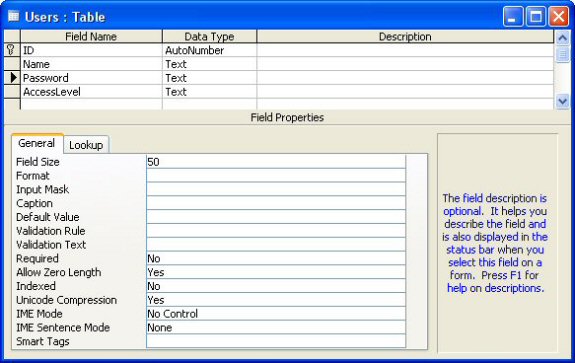
Change the column name Password to UserPassword and
then click the Save button on the toolbar.
- If you have completed the login.asp page
for TheSoccerSite, you'll notice that the page now no longer runs, because
the column name has changed. Fortunately, this can easily be fixed. Open login.asp and
locate the code at the top of the page that takes care of the user validation,
and change the two instances of Password in
the SELECT statement and in the WHERE clause
to UserPassword, as shown in the following
code (note the changes in bold):
MM_rsUser.ActiveConnection = MM_connTheSoccerSite_STRING

    MM_rsUser.Source = "SELECT Name, UserPassword"

    If MM_fldUserAuthorization <> "" Then MM_rsUser.Source =
    _

    MM_rsUser.Source & "," & MM_fldUserAuthorization

    MM_rsUser.Source = MM_rsUser.Source & _

    " FROM Users WHERE Name='" & Replace(MM_valUsername,"'","''") & _

    "' AND UserPassword='" & Replace(Request.Form("txtPassword"),"'","''") & "'"

    MM_rsUser.CursorType = 0
By making these two changes, everything is back as it was. The login page will
pass UserPassword as the password column to
the database, which will now happily accept this as a valid column, so your users
will be validated correctly.
Creating the Insert Form
With the database done, it's time to create a new page and then add the Insert
Record form and behavior, to allow your users to sign up on your page.
- Create a new page based on the main template for the site. Alternatively,
just create a new Dynamic ASP VBScript page. Give the page a title of Sign
Up for GlobalSoccerEvents.com in the Title region of the template and clear
the other two placeholders. Save the page as createNewUser.asp in
the root of your site.
- Make sure you're in Design view, place your cursor in the Content region
of the template and then press Ctrl+~ to
switch to Code view. Using Design view to position your cursor makes it easier
to find the exact location of the Content region of the template in Code
view.
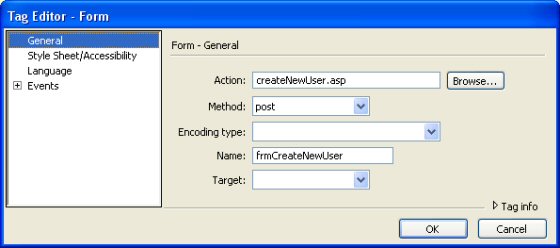
- Choose Insert | Form | Form to open
the Tag Editor dialog for a form. Fill
in the dialog as in the next Figure and click OK when
you're done:
- Add two text boxes to the form and name them txtUserName and txtPassword respectively.
Set the type of the second text box to password.
- Add a button to the form and set its type to submit,
so it can be used to send the form to the server. Label the button Sign
Up and name it btnSignUp.
- Add labels in front of the text boxes, so your user will know what to type
where.
- If you want, you can spend some time to enhance the looks of the form.
For example, you can apply the class clsTextInput to
the text boxes, so they get a thin border around them. You can also add graphics,
change the layout of the page or apply other CSS styles to the form controls.
For this example, I decided to keep the form pretty simple so it's easy to
see what's going on. In the end, you should end up with something like this:
<form action="createNewUser.asp" method="post" name="frmCreateNewUser" >
<table>
<tr>
<td><strong>Username</strong></td>
<td><input name="txtUserName" type="text"class="clsTextInput"
style="width:150px">
</td>
</tr>
<tr>
<td><strong>Password</strong></td>
<td><input name="txtPassword" type="password" class="clsTextInput"
style="width:150px">
</td>
</tr>
<tr>
<td> </td>
<td><input name="btnSignUp" type="submit" value="Sign
Up"></td>
</tr>
</table>
<br>
<br>
</form>
Adding the Insert Record Behavior
Now that you have a complete HTML form, you're ready to add the Insert Record
behavior. This behavior will generate the necessary ASP code to insert a new
record in the Users table in the database.
- Choose Insert | Application Objects
| Insert Record | Insert Record.
- Fill in the dialog as shown in the following Figure:
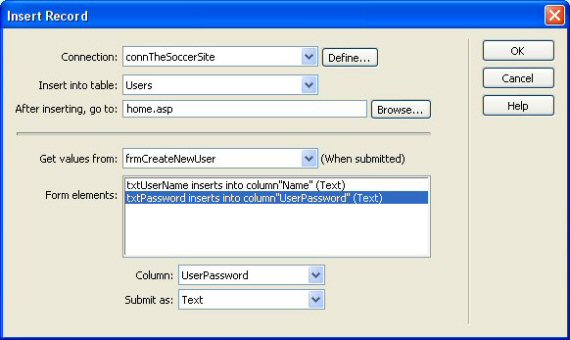
What's important in this dialog is that you select the right Column for
the correct Form element. To do this, first
select txtUserName in the Form
elements list, and then choose Name from
the Column drop-down. Repeat this step
for the txtPassword field, but choose UserPassword instead.
You can leave the Submit as: drop-down
to Text for both text boxes. Instead of
redirecting users to your home page (home.asp)
you can also redirect them to a Thank You page where you can confirm the new
account they just created.
Click OK to apply the behavior to the page.
- Save the page and open it in your browser. Type a username and
password and then hit the Sign Up button.
You'll be taken to the home page of your site.
- Open the page in your browser again, and add the same user with the same
password again. If all went well, you'll end up with two identical users
in your database. You'll see how to fix that in the next section of this
article.
A Little Explanation
If you look at the code that Dreamweaver has generated for you, you may recognize
it. In many respects, it's similar to the code that is used for the Record
Insertion Form Wizard that was used to insert a new event in the database.
The ASP code sets up a few variables that hold the column names in the database
and the text boxes on your form. A SQL statement is created that retrieves the
value for each column from the form fields. Once the entire SQL statement is
complete, it is send to the database by using the Execute method
of the ADODB
Command object.
The current Sign Up form has a few problems. First of all, it is still possible
to insert two users with the same username, something you shouldn't allow in
your Web site. Second, when the user is inserted, it has no Access Level yet.
Not only is this inconvenient, it's also problematic when it comes to security.
An empty access level will pass the access check for levels like Administrators
or Members. Take a look at the following code that performs an Access Level check
and see how this is possible:
 If (Instr(1, "Administrators", UserRole))
    Then

    ' User is allowed to enter

    Else

    ' User is denied access

    End If
The previous If statement will return True when UserRole contains "Administrators".
However, it will also return True when UserRole is
an empty string, which will be the case when no access level has been assigned
to the user. Whoooops....
To fix this security whole, you have three options:
- Add a hidden form field with a default value of "Members" to
your form. This allows you to map this field to the column AccessLevel in
your database. You shouldn't use this method, however. In terms of security,
it's about as bad as not assigning an access level at all. Malicious users
can easily create their own HTML form, replace Members with Administrators
and voila, instant access to the Admin section of your site. Not a comforting
thought.
- The second method is pretty effective, and also quite easy: just change
the Default Value of the column AccessLevel to
Members in your database. This way, any new record you insert will automatically
have Members as the access level. To do this, open the Design
View of the Users table in your
Access database and type Members in the Default
Value field for the AccessLevel column.
- Change the SQL statement right before it is sent to the database. You'll
need to append the column name (AccessLevel)
to the MM_tableValues variable, and the
hard-coded text Member to the variable MM_dbValues.
Although the second method is really easy to implement and pretty secure, I'll
discuss the third method in a bit more detail. It's not always possible to let
the database decide the default value for new columns; you'll often need to append
data like a date or some other value based on the current day, a login account,
an order or any other business logic decision you may have to make. In the next
steps, I'll show you how you can add the AccessLevel column
to the SQL statement, so your users will be assigned a level of Members by default.
Adding the AccessLevel Column
- Locate the code that concatenates the table name, the column names and
the column values, right before the SQL statement is sent to the database:
  MM_tableValues = MM_tableValues & MM_columns(MM_i)

  MM_dbValues = MM_dbValues & MM_formVal

    Next


    MM_editQuery = "insert into " & MM_editTable & " (" & _

    MM_tableValues & ") values (" & MM_dbValues & ")"

    If (Not MM_abortEdit) Then

  ' execute the insert
- Right before the line that starts with MM_editQuery,
add the following two shaded lines of code:
  MM_tableValues = MM_tableValues & MM_columns(MM_i)

  MM_dbValues = MM_dbValues & MM_formVal

    Next
MM_tableValues = MM_tableValues & ",
    AccessLevel"

    MM_dbValues = MM_dbValues & ", 'Members'"
MM_editQuery = "insert into " & MM_editTable & " (" & _

      MM_tableValues & ") values (" & MM_dbValues & ")"

    If (Not MM_abortEdit) Then

  ' execute the insert
- That's all that's necessary to have the SQL statement insert
a default value for the AccessLevel column.
To see if it works, save the page and open it in your browser. Type a new
username and a password, and hit the Sign Up button.
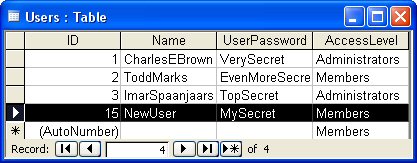
Open the database in Microsoft Access and then double-click the table Users.
You'll see that the record you just inserted now has Members as the AccessLevel:
A Little Explanation
Without the two lines of code you added, the variables MM_tableValues and MM_dbValues could
contain something like this when you submit the form:
MM_tableValues = Name, UserPassword
MM_dbValues = 'NewUser', 'MySecret'
By appending these values to the rest of the SQL statement, you end up with a
complete and valid SQL string. However, before you sent the string to the database,
you added ", AccessLevel" to MM_tableValues and ",
'Members'" (including the ' characters) to MM_dbValues.
This way, the entire SQL statement ended up like this:
 INSERT INTO Users (Name, Password, AccessLevel)

            VALUES('NewUser',
'MySecret', 'Members')
which eventually added Members as the AccessLevel for the new users in the database.
With the Access Level done, there is still one improvement to make to this page;
you'll need to prevent two users from registering with the same name. The Check
New Username behavior that Dreamweaver supplies makes this very easy.
The next steps will show you how to apply this behavior.
Preventing Duplicate Usernames from Appearing in Your Database
- Make sure you have the page createNewUser.asp open
and then choose Insert | Application Objects
| User Authentication | Check New Username. Fill in the dialog as
shown in this Figure and click OK:
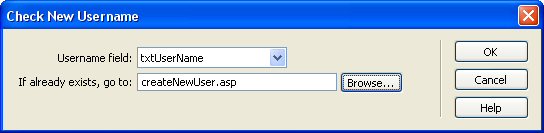
- When the username is already taken, Dreamweaver will redirect
to the page you specify in the If already exists,
go to field. In this example, this is the Sign Up page itself. This
makes it easy to present your user with an error message stating that the
username is already taken, while they stay on the Sign Up page. All they
need to do is type a new username, retype their password and click the Sign
Up button again. To show the error message, add the following shaded
lines of code right before the <form> tag:
<%

    If Len(Request.QueryString("requsername")) > 0 Then

  Response.Write("<br><br><span class=""clsErrorMessage"">" & _

    "The username " & Request.QueryString("requsername") & _

    " has already been taken. Please choose a different
username.</span>")

    End If

    %>
 <form action="<%=MM_editAction%>" method="POST" name="frmCreateNewUser" >

<table>
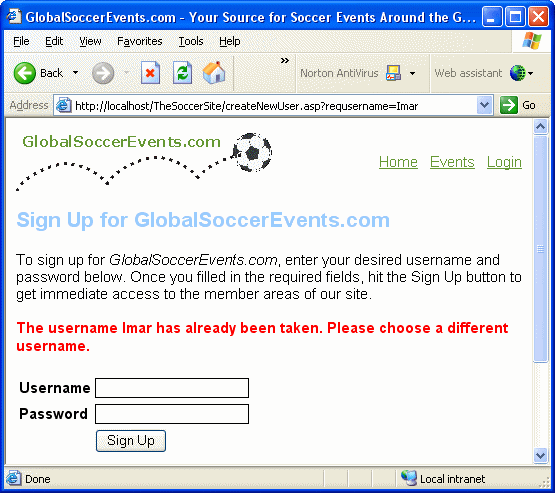
- Save the page and open it in your browser. Try to add the same
user you added earlier. Instead of getting the homepage, you'll now get an
error message stating that the requested username has already been taken:
A Little Explanation
To see what makes this magic happen, let's take a look at the code that Dreamweaver
has inserted for you:
<%

  ' *** Redirect if username exists

  MM_flag="MM_insert"

  If (CStr(Request(MM_flag)) <> "") Then

    MM_dupKeyRedirect="createNewUser.asp"

    MM_rsKeyConnection=MM_connTheSoccerSite_STRING

    MM_dupKeyUsernameValue = CStr(Request.Form("txtUserName"))

    MM_dupKeySQL="SELECT Name FROM Users WHERE Name='" & _

            MM_dupKeyUsernameValue & "'"
This block of code first checks if the form has been submitted to
the server. If it has, MM_flag will
have a value (it's retrieved from a hidden form field, MM_insert).
Then the page that the user is redirected to if they try to claim
a name that has already been taken is set up, followed by the connectionstring
used for the database lookup. In the last line of this block, a SQL
statement is created that will simply perform a SELECT on
the Users table to find out
if the name is already in use by passing the username from the form
to the WHERE clause.
The next block of code creates and initializes an ADODB
Recordset object:
    MM_adodbRecordset="ADODB.Recordset"

    set MM_rsKey=Server.CreateObject(MM_adodbRecordset)

    MM_rsKey.ActiveConnection=MM_rsKeyConnection

    MM_rsKey.Source=MM_dupKeySQL

    MM_rsKey.CursorType=0

    MM_rsKey.CursorLocation=2

    MM_rsKey.LockType=3

    MM_rsKey.Open
The ActiveConnection is set to MM_rsKeyConnection,
that points to the database used for this example. Once the Recordset is set
up, it is opened using the Open method.
     If Not MM_rsKey.EOF
    Or Not MM_rsKey.BOF Then

        ' the username was found - can
not add the requested username

        MM_qsChar = "?"

        If (InStr(1,MM_dupKeyRedirect,"?") >=
1) Then MM_qsChar = "&"

            MM_dupKeyRedirect
= MM_dupKeyRedirect & MM_qsChar & "requsername=" & _

                MM_dupKeyUsernameValue

            Response.Redirect(MM_dupKeyRedirect)
With the Recordset open, the code checks if the the recordset contains the requested
username. If it does, the EOF property of
the Recordset will be False, so the code in
the If block will run. Inside that block,
the redirect string is created. The name of the page you want to redirect to
is extended with a QueryString name/value pair. requsername is
passed as the name and the requested username is passed as the value. This allows
you to see what name was initially requested when you display the error message.
         End
    If

        MM_rsKey.Close

    End If

    %>
If the username was not found, the page will continue after the End
If statement, so the code for the Insert Record will fire normally, adding
the user to the database.
The last part that needs some explanation is the error message:
<%

    If Len(Request.QueryString("requsername")) > 0 Then

    Response.Write("<br><br><span class=""clsErrorMessage"">" & _

"The username " & Request.QueryString("requsername") & _

" has already been taken. Please choose a different username.</span>")

    End If

    %>
If the username was already taken, requsername will
have a value, so the code in the If block
will run. An error message is displayed onscreen, indicating that the requested
username has already been taken.
Summary
With the Check New Username in place, you have a fully functional Sign Up page.
Users can simply add their username and password and get immediate access to
the restricted sections of your site. The Check New Username behavior will make
sure that you don't end up with two members sharing the same username, so you're
always able to uniquely identify your members. The additional code you added
to the Insert Record behavior ensures that your new members are assigned the
AccessLevel of Members by default. If you want to assign them a different level,
you'll need to modify the code, or change the level in the database directly.
Possible Extensions to the Sign Up Page
This article has just shown you the basic steps you need to perform to have a
user sign up at your Web site. However, there are quite a lot of extensions possible
you can add to this page:
- Add a link to createNewUser.asp on the
login page. This way, new users can easily access the Sign Up page.
- If you require more information from your user, add additional fields
(like E-mail address, full name etc to your database and your HTML form.
You'll need to update the Insert Record behavior so the new fields are passed
to the database correctly.
- As a service to the user, you can add the username back to the text box
if their username has already been taken. This makes it easier for them to
choose a new name, by appending a sequential number for example. All you
need to do is add <%=Request.QueryString("requsername")%> to
the value attribute of the txtUserName text
box.
- Right now, the user can insert anything they like for a name or password,
or even leave all fields empty. You could add some JavaScript with regular
expressions that checks the username and password for a specific pattern
so you can force your user to submit valid data. Don't forget to perform
the same validation on the server, because it's easy for a determined visitor
to circumvent the JavaScript validation.
Download files