Howto Create a Hit Counter Using a Database in ASP.NET 1.x with VB.NET
This article will show you how to accomplish these two tasks by storing the hit counters in shared variables in the Global class and in a database using code in the Global.asax file. The counters in the shared variables are used to display them on a page in your Web site; either as a counter so your visitors can see it as well, or somewhere on a page in your Admin section, so only you have access to them. By writing the counters to a database you can maintain their value even when you restart the Web server, while you still have a fast and scalable solution.
This article extends the ideas from two previous articles where the values of the counters were just stored in static variables in the Global class and in a text file.
There are also Classic ASP and ASP.NET C# versions of this article available.
Prerequisites
The code in this article uses Sessions in ASP.NET, so you'll need to have them enabled on your server, by configuring the <sessionState> element in the Web.config file. Refer to the References section at the end of this article for more details.You'll also need to have access to a file called Global.asax in the root of your site. If you run your own Web server, this is not a problem; you can simply create the file yourself. If you are using an ISP, you'll need to check with them if they support the use of the Global.asax file as, unfortunately, not all ISPs allow this.
You'll also need to be able to write to and read from a database from within the Global.asax file. This means that the account your Web site is running under (usually, this is the ASPNET account) needs sufficient permissions to write to the database file and the folder it resides in.
Finally, this article assumes you're using Visual Studio .NET 2002 or 2003, as it shows code and ASPX pages using the Code Behind model. Don't worry if you don't have Visual Studio .NET; it should be relatively easy to use the code in your own Code Editor like Macromedia Dreamweaver MX or Notepad.
Counting Users
Just as in the article where the counters were stored in the Global class, you can make use of the Session_Start event, defined in the Global.asax file to keep track of your users. This event is fired whenever a user requests the first page in your Web site. This way, you have the ability to count each unique visitor only once during their visit. As long as the Session remains active on the server, the user won't be counted again. After the Session has timed out (it will automatically time out after a certain interval when no new pages have been requested) or has been explicitly ended, a request to a page will create a new Session, Session_Start will fire and the user will be counted again.To keep track of the total number of users that have visited your site since you started the Web server, you can increase a counter for each request a user makes. Let's call this counter _totalNumberOfUsers. You can store that counter in a shared variable in the Global class, so you can retrieve and display it on other pages in your site. You can also create a second counter, called _currentNumberOfUsers for example, that counts the number of active Sessions on your server. Just as with _totalNumberOfUsers, you increase the value of this counter whenever a new Session is started. However, you should decrease its value again when the Session ends. so you can keep track of the number of users that are currently visiting your site.
Besides storing these values in the Global class, I'll show you how to save them in a database, so the value for the counter is preserved, even when the Web server is stopped and restarted. When your server is restarted, code in the Global.asax file will read in the old value from the database, so your counter will continue with the value it had before the restart. Don't underestimate the problem of restarting your Web server. Even if you have your stable Windows 2003 box running for months without a reboot, the new IIS Process Recycling feature may restart your Web application every day or even every few hours.
This example uses a Microsoft Access database that is called Website.mdb. The database has just one single table called Counters. This table has two columns called CounterType and NumberOfHits. The CounterType column defines the type of counter you want to store in the database. The table looks as follows:
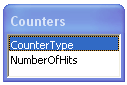
Figure 1 - The Counters Table
The NumberOfHits column will hold the number of hits for the counter. In this example, it stores the number of visitors to your site.
The code assumes that you have saved this database (which is available in the code download for this article) in a folder called C:\Databases. If you decide to store your database at a different location, make sure you adjust the path in the code that references the database. You'll also need to make sure that the ASPNET account has sufficient permissions to both the database and the folder Databases.
Once you have set up the database, you should make sure you have a file called Global.asax (note that the extension is different from ordinary aspx pages) in the root of your Web site. Usually, when you create a new Visual Studio ASP.NET Web Application, the Global.asax file is already there, and the skeleton for important events like Session_Start and Session_End are already present in its Code Behind file.
If you don't have the file yet, open the Visual Studio .NET Solution Explorer (Ctrl+Alt+L), right-click your Web project and choose Add | Add New Item... from the context menu. Scroll down the list with Web Project Items until you see Global Application Class. Alternatively, expand Web Project Items and then click Utility to limit the list of Web items. Select the Global Application Class and click Open to add the Global.asax file to your Web site project.
If the page doesn't open in Code View, click the + symbol in front of Global.asax in the Solution Explorer to expand it and then double click the file Global.asax.vb to open it in the Code editor. You'll see some default Import statements, followed by the definition for the Global class. I'll show you how to expand this class in the remainder of this article by adding a few private variables for the two hit counters. These private variables will then be made accessible through public properties. Using properties instead of public fields helps keeping your code cleaner and more stable. Calling code is not allowed to just arbitrarily change the field's value; it has to change the value through a public Set method. In this example, you'll make the code even a bit more safe by removing the Set method altogether. This makes it impossible for calling code to change the value of the counter; all it can do is read its value.
Modifying Global.asax
- Locate the code that starts with Public Class Global Inherits System.Web.HttpApplication and add the following shaded lines of code:
Imports System.Web
Imports System.Web.SessionState

Public Class Global
  Inherits System.Web.HttpApplication
  Private Shared _totalNumberOfUsers As Integer = 0
  Private Shared _currentNumberOfUsers As Integer = 0
- The code that writes the counters to the database, makes use of objects like the OleDbConnection, located in System.Data.OleDb namespace, so you'll need to add a reference to this namespace by adding an Imports statement, at the top of the page somewhere below the other Imports statements:
Imports System.Web.SessionState
- The next step is to add code to the Session_Start event. This event will fire once for each user when they request the first page in your Web application, so this place is perfect for your hit counters. Inside this event, the values of the two hit counters are increased; one for the total number of users and one for the current number of users. Once the values are increased, the value of _totalNumberOfUsers will be written to the database as well.
Locate the skeleton for the Session_Start event and add the following code:
Sub Session_Start(ByVal sender As Object, ByVal e As EventArgs)
  ' Fires when the session is started
  ' Increase the two counters.
  _totalNumberOfUsers += 1
  _currentNumberOfUsers += 1


  ' Save the Total Number of Users to the database.
  ' Build connectionstring. Modify path to db, if necessary
  Dim connectionString As String = "Provider=Microsoft.Jet.OLEDB.4.0;" & _
    "Data Source=C:\Databases\Website.mdb;" & _
    "User ID=Admin;Password="

  ' Build UPDATE statement
  Dim sql As String = "UPDATE Counters SET NumberOfHits = " & _
    _totalNumberOfUsers & " WHERE CounterType = 'UserCounter'"

  Dim conn As OleDbConnection = New OleDbConnection(connectionString)
  Dim cmd As OleDbCommand = New OleDbCommand(sql, conn)

  ' Open the connection, and execute the SQL statement.
  cmd.Connection.Open()
  cmd.ExecuteNonQuery()
  cmd.Connection.Close()
End Sub
- Just as with the Session_Start event, you'll need to write some code for the Session_End event as well. However, instead of increasing the counters, you should decrease the counter for the current number of users only. This means that whenever a user Session times out (usually 20 minutes after they requested their last page), the counter will be decreased, so it accurately holds the number of current users on your site. You should leave the counter for the total number of users untouched.
Locate the Session_End event, and add this line of code:
Sub Session_End(ByVal sender As Object, ByVal e As EventArgs)
  ' Fires when the session ends
_currentNumberOfUsers -= 1
End Sub
How It Works
The code that runs in the Session_Start event performs a few important steps; first of all, the values for the two hit counters are increased. Next, a connection string and a SQL statement are created. The connection string points to the database Website.mdb located at C:\Databases.The SQL statement is a simple UPDATE statement that will update the value for the NumberOfHits column. You need to make sure that just the UserCounter record is updated, and the WHERE clause in the SQL statement takes care of that. This WHERE clause will make sure that only the right record is modified.
Notice that just the value of the _totalNumberOfUsers counter is saved. There is no need to store the current number of users; after all, when the Web server is restarted, there are no current users yet.
Next the connection object and a command object are constructed. I am using an OleDb connection in this example because a Microsoft Access database is used. If you're using SQL Server or another type of database, you'll need to construct a different kind of connection object, like a SqlConnection. The command object is used to send the SQL statement to the database over the open connection.
Finally, the connection is opened, the command is executed and the connection is closed again.
The code that runs in the Session_End event simply decreases the value of the current number of users. There is no need to touch the counter for the total number of users.
Making Your Counters Accessible by Other Pages
Since the hit counters are stored in the Global class, you need some way to get them out of there, so you can display them on a management page for example. The easiest way to do this, is to create two public properties. Because the Global class is in many respects just an ordinary class, it is easy to add public properties to it.To add the properties, locate the skeleton for the Application_End event, and add the following code just below it:
  Sub Application_End(ByVal sender As Object, ByVal e As EventArgs)
    ' Fires when the application ends
  End Sub
  Public Shared ReadOnly Property TotalNumberOfUsers() As Integer
    Get
      Return _totalNumberOfUsers
    End Get
  End Property
  Public Shared ReadOnly Property CurrentNumberOfUsers() As Integer
    Get
      Return _currentNumberOfUsers
    End Get
  End Property
End Class
With these two properties in place, your calling code is now able to access the values of your hit counters. For example, to retrieve the number of users browsing your site right now, you can use this code: Global.CurrentNumberOfUsers. Notice how I added the keyword ReadOnly to the property definition. In VB.NET, when you leave out the Set method, you have to add this keyword as well, to indicate to the compiler that you really want to make this property readonly.
Reading the Counter When the Web Server Starts
As long as the Web server keeps running, this code will run fine. For each new Session that is created, the counters are increased by one and the value of _totalNumberOfUsers is written to the file. If, however, the Web server stops unexpectedly, or your restart or reboot the Web server yourself, the values for _totalNumberOfUsers and _currentNumberOfUsers are lost. But because the value for _totalNumberOfUsers has also been saved in the database, it's easy to retrieve the counter again when the Web server starts. To read in the value from the database, you'll need to add some code to the Application_Start event that is also defined in the Global.asax file:Sub Application_Start(ByVal sender As Object, ByVal e As EventArgs) ' Fires when the application is started
  ' Get the Total Number of Users from the database.
  ' Build connectionstring. Modify path to db, if necessary
  Dim connectionString As String = "Provider=Microsoft.Jet.OLEDB.4.0;" & _
    "Data Source=C:\Databases\Website.mdb;" & _
    "User ID=Admin;Password="

  ' Build SELECT statement
  Dim sql As String = "SELECT NumberOfHits FROM Counters " & _
    "WHERE CounterType = 'UserCounter'"

  Dim conn As OleDbConnection = New OleDbConnection(connectionString)
  Dim cmd As OleDbCommand = New OleDbCommand(sql, conn)

  ' Open the connection, and execute the SQL statement.
  cmd.Connection.Open()
  Dim reader As OleDbDataReader = cmd.ExecuteReader()
  If (reader.Read()) Then
    _totalNumberOfUsers = reader.GetInt32(0)
  Else
    _totalNumberOfUsers = 0
  End If

  ' Close the reader and the connection
  reader.Close()
  cmd.Connection.Close()
End Sub
This code is more or less the same as the code that was used to write the value to the database. What's different here is that a SELECT statement is used to retrieve the value for the hit counter from the database. The same WHERE clause is used to make sure you get the value for the right counter.
What's also different is the use of an OleDbDataReader to retrieve the value from the database. If the Read method returns True, it means that the requested counter has been found. In that case, the value from the NumberOfHits column is stored in the private variable called _totalNumberOfUsers. The GetInt32 method makes sure the value is retrieved as an Integer. If the counter is not found, the private variable is reset to 0. (Note that it is unlikely that the record is not found, as it is defined in the database. If you ever delete this record, the UPDATE statement that sets the counter in the Session_Start will not run correctly, because it expects the record to be present).
At the end, the OleDbDataReader and the Connection are closed. This is good practice, as leaving DataReaders and Connections open can severely limit the number of concurrent users your site can serve.
Testing it Out
To test out your hit counters, create a new Web form and call it HitCounter.aspx. You can save the form anywhere in your site. In Design View, add two labels to the page and call them lblTotalNumberOfUsers and lblCurrentNumberOfUsers respectively. Add some descriptive text before the labels, so it's easy to see what value each label will display. You should end up with something similar to this in Code View:<body> <form id="frmHitCounter" method="post" runat="server">
    Total number of users since the Web server started:
    <asp:label id="lblTotalNumberOfUsers" runat="server" /><br />

    Current number of users browsing the site:
    <asp:label id="lblCurrentNumberOfUsers" runat="server" /><br />
  </form>
</body>
Press F7 to view the Code Behind for the hit counter page, and add the following code to the Page_Load event:
Private Sub Page_Load(ByVal
   sender As System.Object, ByVal e As System.EventArgs) Handles MyBase.Load
  Dim currentNumberOfUsers As Integer = Global.CurrentNumberOfUsers
  Dim totalNumberOfUsers As Integer = Global.TotalNumberOfUsers
  lblCurrentNumberOfUsers.Text = currentNumberOfUsers.ToString()
  lblTotalNumberOfUsers.Text = totalNumberOfUsers.ToString()
End Sub
The first two lines of code retrieve the total number of visitors and the current number of visitors from the public properties defined in the Global class. The next two lines simply display the values for the counters on the appropriate labels on the page.
To test it out, save the page and view it in your browser. You'll see there is one current user. Also, note that the total number of users is 1. Open another browser (don't use Ctrl+N, but start a fresh instance or use an entirely different brand of browser) and open the counter page. You'll see there are two current users, and two users in total.
Next, restart your Web server. If you are using IIS, you can choose Restart IIS... from the All Tasks context menu for your Web server in the IIS Management Console. Alternatively, you can recompile your application in Visual Studio .NET. Whenever you do a recompile, the Web application will restart automatically.
Open HitCounter.aspx again. You'll see that currently you're the only user browsing the site, but the total number of users has maintained its value.
Summary
This article demonstrated how to create a hit counter that keeps track of the current and total number of users to your site. It stores these counters in shared variables in the Global class so they are available in each page in your Web site. It also stores the value for the total number of users in a database so its value won't be lost when the Web server restarts, either unexpectedly, or on purpose.By using a database, you have created a solution that can easily be scaled to lots of users. If you have a real busy Web site, you can change the code from this article so it uses a real Database Management System, like Microsoft SQL Server or Oracle. These kind of work beasts can easily serve thousands and thousands of users a day allowing for lots of concurrent users.
Related Articles
- When Sessions End - Once And For All! at www.asp101.com (http://www.asp101.com/articles/john/sessionsend/default.asp)
- Howto Create a Hit Counter Using a Text File in ASP.NET (http://Imar.Spaanjaars.Com/223/howto-create-a-hit-counter-using-the-globalasax-file-in-aspnet-1x)
- Howto Create a Hit Counter Using the Global.asax file in ASP.NET (http://Imar.Spaanjaars.Com/227/howto-create-a-hit-counter-using-a-text-file-in-aspnet-1x)
- Howto Create a Hit Counter Using a Database ("Classic ASP" version) (http://Imar.Spaanjaars.Com/165/howto-create-a-hit-counter-using-a-database
References
- Configuring ASP.NET Applications to Use the Appropriate Session State (http://technet2.microsoft.com/WindowsServer/en/Library/51aa77d2-4485-4cb9-a75f-9186dc5d775f1033.mspx)
- <sessionState> Element (http://msdn.microsoft.com/library/en-us/cpgenref/html/gngrfsessionstatesection.asp)
Download Files
- Source Code for this Article (http://Imar.Spaanjaars.Com/Downloads/Articles/HitCounterInDatabaseASPNET.zip)
Where to Next?
Wonder where to go next? You can post a comment on this article.
Links in this Document
| Doc ID | 261 |
| Full URL | https://imar.spaanjaars.com/261/howto-create-a-hit-counter-using-a-database-in-aspnet-1x-with-vbnet |
| Short cut | https://imar.spaanjaars.com/261/ |
| Written by | Imar Spaanjaars |
| Date Posted | 03/02/2004 19:32 |
| Date Last Updated | 03/02/2004 20:26 |
| Date Last Reviewed | 12/07/2006 18:53 |
Comments
Talk Back! Comment on Imar.Spaanjaars.Com
I am interested in what you have to say about this article. Feel free to post any comments, remarks or questions you may have about this article. The Talk Back feature is not meant for technical questions that are not directly related to this article. So, a post like "Hey, can you tell me how I can upload files to a MySQL database in PHP?" is likely to be removed. Also spam and unrealistic job offers will be deleted immediately.
When you post a comment, you have to provide your name and the comment. Your e-mail address is optional and you only need to provide it if you want me to contact you. It will not be displayed along with your comment. I got sick and tired of the comment spam I was receiving, so I have protected this page with a simple calculation exercise. This means that if you want to leave a comment, you'll need to complete the calculation before you hit the Post Comment button.
If you want to object to a comment made by another visitor, be sure to contact me and I'll look into it ASAP. Don't forget to mention the page link, or the Doc ID of the document.