Searching TheSoccerSite With Dreamweaver MX
More and more Web sites these days are database-driven. That means that most of the content, customer data, site statistics and maybe even information used for the navigation menu or other layout purposes is stored in a database.
With all that data stored in a database, you also need to provide a means to let your users search for it in the database. Since this information is not file based, you can no longer use tools like Index Server that index the contents of physical files. Instead, you'll need to code the query logic yourself. For each database-driven application, the search facility will be different, because usually your back-end database and the front-end requirements are different. However, part of code can easily be reused in other projects. In this article, I will focus on building a search facility for TheSoccerSite, a database-driven soccer fan site that was created in section 2 of the books Beginning Dreamweaver MX and Beginning Dreamweaver MX 2004. Although the implementation will be specific for the Soccer Site project, you'll get enough background to successfully implement a search facility on your own Web site.
Prerequisites
Let's take a brief look at the things you need to follow along with this article. Since I am using Dreamweaver in all my examples, it would be useful if you have Dreamweaver as well. Either Dreamweaver MX or Dreamweaver MX 2004 will do. I'll be using Dreamweaver MX 2004, but if you're using Dreamweaver MX, you should be able to follow along. Besides Dreamweaver, you'll need a Web server capable of running ASP pages. You also need a Microsoft Access database that holds the data for your Web site. Don't worry if you don't have Microsoft Access, or a database yet. The download for this article comes with all the stuff you need to get your search engine up and running.
The starting point of the Web site for this article is the final version of TheSoccerSite (Chapters 7 - 13) from the Beginning Dreamweaver MX 2004 book. You can download the code from the Wrox site. Note that this code will also run fine in Dreamweaver MX.
If you want to see the final search page running, first setup TheSoccerSite as per the instructions in the Readme file for the code download from the Wrox site. Then, overwrite the existing files with the updates from the code download for this article. Finally, update the existing pages in your Web site so they use the features added to the Library Item mainMenu.lbi by choosing Modify | Templates | Update Pages... in Dreamweaver.
What Are You Looking For?
Before you start coding a search engine for your site, it's a good idea to step back for a while and consider the design of such an application. You'll need to answer questions like: What information are my users searching for on my site? How should I present the search results? How should the search results be linked to other sections of my site? On what pages should the search facility be available?
To get an answer to these questions, put yourself in your visitor's position (or better yet, ask your real visitors how they'd prefer an application like this to work). Try to figure out how your visitors use your site, and what they are looking for.
When I think of a typical visitor to TheSoccerSite, I imagine a soccer fan. Logically, this fan will visit the site to find out which important soccer events are going to take place where and when. So, the information this visitor is after is all about the events that are available on the site. When I also consider the current Web site and the information that is available on it, I can come up with the following requirements for a search facility:
- The search engine must support simple boolean queries (that is, it must understand AND and OR)
- The search engine must be accessible from every page in the site.
- The search engine must be able to retrieve words used in the Title, the Summary and in the Description of the event in the database. Besides these three columns, it should also retrieve information from a Keywords column (which is not implemented in the current database yet).
- The search results must be presented in a pageable list, similar to the current list of events on events.asp.
Requirement 2 is pretty easy to fulfill: since the entire site is based on Templates and a Library Item, it's easy to add just a search box to the main template, so it becomes available on all pages using it. You'll see later in this article how this is going to be implemented.
Requirement 4 is also not that hard. The current site already uses a pageable list, implemented with a couple of Recordset Paging Server Behaviors. The Search page is going to be pretty similar to the events.asp page when it comes to data presentation and navigation.
I'll discuss the implications of requirement 3 in the section titled The Database later in this article.
Requirement 1 is going to be the hardest part of the Search application. You'll need to retrieve the search term the user typed in and parse it, looking for individual keywords and the terms AND and OR. I'll discuss the parsing mechanism in full later in this article.
Besides these four requirements, it may be necessary to implement an "Advanced Search" feature. Instead of searching for just a few keywords, you could offer your users more advanced search options. For instance, you could display a drop-down with all the categories of events, so the search is limited to events from a specific category. Another enhanced feature would be to allow your users to search for events that take place between two specific dates.
With the requirements for the search engine clearly stated, it's time to examine the database and see what changes you need to make.
The Database
The database for TheSoccerSite has an Events table that is designed to hold the following data:
| Column Name | Description |
| ID | The unique ID of the Event in the database. This column is an AutoNumber, so the database takes care of assigning new numbers. |
| Title | The Title of the Event, as it will appear on the events.asp page. |
| Summary | A short Summary of the Event. |
| EventDescription | The full Description of the Event. |
| Category | The ID of the category in the Categories table that the Event belongs to. |
| StartDate | The date the Event starts. |
| EndDate | The date the Event ends. |
The Title, the Summary and the EventDescription are all text columns, so they are ideal candidates for a full-text search. The requirements stated that users should also be able to search for words listed in a Keywords column. To offer this functionality, you'll need to add an additional column called Keywords to the Events table. Set the type of the column to Text and its length to the maximum allowed (255 characters in a Microsoft Access database). If you're a verbose type and think 255 characters is not enough, change the data type of the column to Memo. This allows you to enter a virtually unlimited number of keywords. When you're done, your Events table should look like this in the Access Table Designer:
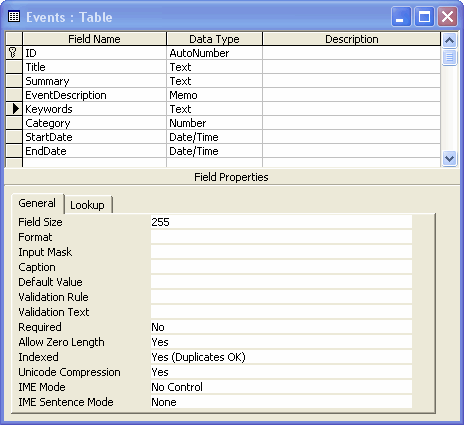
Figure 1 - The Events table in the Microsoft Access Table Designer
Once you have added the Keywords column, be sure to add some keywords for the existing events. This allows you to test the search functionality later. If you have made changes to the database, don't forget to upload it to your remote server.
The code download for this article includes a complete database with the Keywords column already added and filled.
Accessing the Search Engine
As you'll recall from the requirements list, the search engine should be accessible from all pages in the Web site. Because the site uses Templates and Library Items this is pretty easy to do. In the HTML table for the Main Menu (located in mainMenu.lbi) you can add an HTML text box and a submit button that allows your users to quickly search the site. Instead of embedding the search functionality directly in the Main Menu, you can have the submit button submit to search.asp. This page, then, will search the database and display the relevant events. When you're finished with the next 8 steps, the Main Menu for TheSoccerSite will have a search box and look like this:
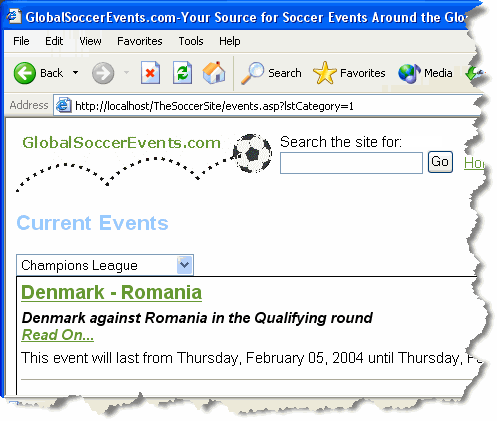
Figure 2 - The Search Box Embedded in the Events page
-
Open mainMenu.lbi from your Library folder and, if necessary, switch to Code View.
-
Locate the first table cell of the outer table of the Main Menu that holds the logo for the site. Add a new, empty <td> tag between the cell with the logo and the one that holds the menu.
<tr>
<td><img src="../Images/<%=sBadge%>.gif" name="imgDefaultBadge"
id="imgDefaultBadge"></td><td></td><td>
<table border="0" align="right" cellpadding="0" cellspacing="0"> -
Inside the empty table cell, add an HTML <form> with the following properties:
Attribute Value Name frmSearch Action ../search.asp Method Get -
With your cursor between the opening and closing <form> tags, choose Insert | Form | Text Field. Name the text field txtSearch and set the Max length to 50 to limit the amount of text your users can search for. Set the Value of the text field to <%=Request.QueryString("txtSearch")%>.
-
Just after the text field, add a button that will submit the search form. Make sure you set its Type to submit, its Name to btnSearch and its Value to Go.
-
Right above the text field, add a descriptive text that clarifies the purpose of the text box and the button. Something like: "Search the site for:" will do. If you followed along correctly, you should end up with code similar to this:
<td><form action="../search.asp" method="get" name="frmSearch">
Search the site for:<br />
<input name="txtSearch" type="text"
value="<%=Request.QueryString("txtSearch")%>" maxlength="50">
<input name="btnSearch" type="submit" value="Go">
</form></td> -
Save the Library Item. Dreamweaver will offer to update all pages that depend on it. Click the Update button to update all the pages in your site.
Next, you'll need to fix the logo in the site again, because the update of the Library Item messed up the dynamic src attribute for the logo. Choose Modify | Templates | Update Pages... and then click the Start button to fix the problem. Save all pages you may have open by choosing Save All from the File menu.
Finally, right-click your site in Local View on the Files panel and choose Put. This will update the entire site on your remote server.
- Open the page events.asp in your browser. The new search box will appear at the top of your page. Enter a search term and click the Go button. You'll get an error stating that search.asp could not be found, but at least you now know that the form and the button work fine.
Preparing the Search Page
Now that you have the ability to enter a search term, it's time to setup the page that performs the actual search action. The initial requirements stated that the search results should be presented as a pageable list. Fortunately, you already have created a page in TheSoccerSite that has this behavior: the Events page (events.asp). So, instead of reinventing the wheel, you can create a copy of the events.asp page and modify it to suit your searching requirements. In the next part of this exercise, I'll discuss the steps you need to take to prepare this copy of the events page so it can display your search results. In a later part of this article, you'll modify search.asp again, so it performs the actual search.
-
Locate the file events.asp in the root of your site in Local View. Press Ctrl+D to duplicate the page. Rename the duplicate to search.asp.
-
Open search.asp in Dreamweaver. Give the page a title of Search Results in the <title> section of the page, and in the Title section of the template.
-
Switch to Design View and click once on the Categories drop-down to select it. Next, press the Delete key to delete the drop-down from the page. Switch to Code View and delete the code block on the page that is related to the category drop-down. It's one of the last ASP code blocks on the page, right before the start of the DoDateTime function, and the opening <html> tag. It starts with
<% SetFirstVisitedPage() %><%
Dim iLastCategory
If Request.QueryString("lstCategory") <> "" Then
and ends with:
Response.Cookies("LastCategory").Expires = Date() + 10
End If
End If
%>
Make sure you leave the call to SetFirstVisitedPage() untouched, unless you don't want to measure this page's popularity.
-
Remove the following code at the top of the page:
<%
Dim rsEvents__MMColParam
rsEvents__MMColParam = "Category"
If (Request.QueryString("lstCategory") <> "") Then
rsEvents__MMColParam = Request.QueryString("lstCategory")
End If
%> -
Because the code for the SQL statement uses a variable defined in the Code Block you just removed, you'll need to modify the SQL statement as well. For now, the easiest way to do this is to cut the following parts from the SQL statement that is set as the Source of the Recordset rsEvents:
Category = " + Replace(rsEvents__MMColParam, "'", "''") + " AND
and
ORDER BY StartDate ASC
You should end up with this code:
rsEvents.Source = "SELECT EndDate, ID, StartDate, Summary, Title FROM Events
WHERE EndDate >= #" + Replace(rsEvents__Today, "'", "''") + "#"
Notice that I didn't use underscores to split the code over multiple lines. In your page, this code should be all on one line. Dreamweaver is not able to reconstruct the Recordset later when you add the underscores. In general, it's best to leave the code that Dreamweaver generates formatted as it was as much as possible.
Make sure that you don't remove the last quote of the string; the SQL statement should end with "#".
-
Switch back to Design View and click somewhere in the dynamic table that displays the list with events. For example, click near or on the text "This event will last from". Then select the entire dynamic table by clicking on <table.clsBlackBorder> on the Tag Selector. With the entire table selected, open the Server Behaviors panel, click the plus (+) button and choose Show Region | Show Region If Recordset Is Not Empty. The recordset rsEvents is already selected in the list so all you have to do is click the OK button.
The code that Dreamweaver has inserted will hide the entire dynamic table when no events matching the search criteria have been found.
-
Once again, switch to Code View and locate the closing </form> tag. Right before it, add a message that tells the user that no events were found in the database. Apply the CSS class clsErrorMessage to the message and then wrap the entire message in a Show Region If Recordset Is Empty behavior, by choosing it from the appropriate menu on the Server Behaviors panel. You should end up with code similar to this:
<% End If ' end Not rsEvents.EOF Or NOT rsEvents.BOF %><% If rsEvents.EOF And rsEvents.BOF Then %>
<div class="clsErrorMessage">
We're sorry, but we couldn't find any events matching your search
criteria. Please enter a new search term and hit the Go button to try
again. If you requested this page directly, please enter a search term
in the text box above and click the Go button.
</div>
<% End If ' end rsEvents.EOF And rsEvents.BOF %></form> - Finally, save the Search page and view it in your browser. You'll see all your events listed. (If you don't see any event, you need to run the page changeDatesOfEvents.asp available in the code download that will update the start and end dates of the available events). Type a search term in the text box and click the Go button. You'll still see the exact same events, but you'll also see that the search box is maintaining its value. Click Next a couple of times to browse through the list of events; the search box still keeps its value through the QueryString that gets passed with the Next and Previous links:
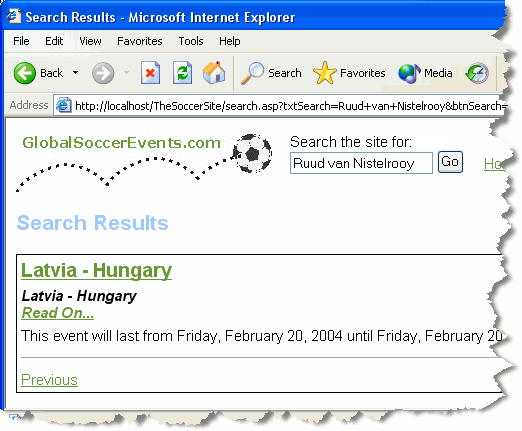
Figure 3 - Pageable List of Events; Search box maintains its value
Two Down, Two To Go!!
Of the original list with requirements, number two and four have been met now. The search facility can be accessed from each page in the site, and the list with results is presented in a pageable list. Now, all you have to do, is add the search feature itself ;-)
Before we delve into the search feature, let's step back again and take a look at how the search should be performed. Up until now, you have always used the = operator in a WHERE clause to limit the number of records retrieved from the database. For example, to limit the list of events to those from the UEFA Cup, you used code like: WHERE Category = 2.
To do a full text search, you can no longer use the = character. After all, there is likely to be much more text in the Title, Summary, EventDescription or Keywords columns than the text you are searching for.
For the purpose of text searching, the SQL language provides the LIKE keyword. In combination with a wild card character, the LIKE operator is a powerful mechanism to search text-based columns. Let's take a look at an example to see how this works:
As you can see, I have used the % character as a wild card on both sides of the search term. This way, I indicate to the database that it should return all Events that have the term Ruud van Nistelrooy somewhere in the EventDescription. If I leave out the first wild card (i.e. WHERE EventDescription LIKE 'Ruud van Nistelrooy%'), I'll get all the records that start with the text Ruud van Nistelrooy.
Just as with other queries, you can use AND and OR to change the criteria for the WHERE clause. So, to find all events that talk about Ruud or about Nigel de Jong, you can use this query:
OR EventDescription LIKE '%Nigel de Jong%'
Notice that the above query will also return events that contain both names.
Knowing how to pass the correct SQL statement from your Web page to the database is one thing, but how do you build up the SQL statement in the first place? If your users search for one word, like Ajax, things are relatively easy. You just need to retrieve the keyword from the form, and append it to the WHERE clause of your SQL statement. However, when a user types in Ruud AND Nistelrooy OR Nigel AND Jong, things become completely different. You'll need to parse the search string, locate all the AND and OR occurrences, and then build up your SQL statement.
Fortunately, Scott Mitchell, the editor, founder, and primary contributor to 4GuysFromRolla.com has done most of the work already in his article Searching 4GuysFromRolla.com. In this article he explains how he created a database to store the keywords of his static HTML files in a database, so they were available to users searching the site. Although the article is a bit dated by now, the algorithm he proposed to parse the search terms the user entered is still valid and will work for relatively simple search engines, just like the one you need for The Soccer Site. I won't be explaining the entire code for the parse function, but I strongly recommend reading the article, and especially part 3. I'll just briefly explain what the code does when I introduce it in the next part of this article.
Putting It All Together
Now that you have the ability to receive the search terms your visitor enters, and the means to display the search results, it's time to put in the missing link: the code that parses the search text, builds a WHERE clause and then fills a recordset with the Events from the database that match the search criteria.
-
Open up search.asp and scroll all the way down to the end of the page. After the closing <html> tag and the code that closes the recordset rsEvents, add the following code:
</html>
<%
rsEvents.Close()
Set rsEvents = Nothing
%><%
Private Function ParseSearchTerms(ByVal searchTerm)
'****************************************************************
' This function is heavily based on the original
' code from: http://www.4guysfromrolla.com/webtech/113000-1.3.shtml
' Author: Scott Mitchel
' For: http://www.4guysfromrolla.com/
'****************************************************************
Dim colTerms ' will hold each main "search part"
Dim orTerms ' will hold the OR conditions
Dim iUpperTerms ' UBound of the colTerms array
Dim iLoop
Dim iUpperOrTerms
Dim iOrLoop
Dim strWhereClause
' Protect against SQL injection
searchTerm = Replace (searchTerm, "'", "''")
searchTerm = Replace (searchTerm, ";", "")
colTerms = Split(searchTerm, " and ", -1 ,1)
iUpperTerms = UBound(colTerms)
strWhereClause = ""
For iLoop = LBound(colTerms) to iUpperTerms
orTerms = Split(colTerms(iLoop), " or " , -1, 1)
iUpperOrTerms = UBound(orTerms)
strWhereClause = strWhereClause & "("
For iOrLoop = LBound(orTerms) To iUpperOrTerms
strWhereClause = strWhereClause & "Title LIKE '%" & _
Trim(orTerms(iOrLoop)) & "%' OR " & _
" Summary LIKE '%" & _
Trim(orTerms(iOrLoop)) & "%' OR " & _
" EventDescription LIKE '%" & _
Trim(orTerms(iOrLoop)) & "%' OR " & _
" Keywords LIKE '%" & _
Trim(orTerms(iOrLoop)) & "%'"
If iOrLoop < iUpperOrTerms Then
strWhereClause = strWhereClause & " OR "
End If
Next
strWhereClause = strWhereClause & ")"
If iLoop < iUpperTerms Then
strWhereClause = strWhereClause & " AND "
End If
Next
' Return the Where clause
If Len(strWhereClause) > 0 Then
ParseSearchTerms = " AND " & strWhereClause
Else
ParseSearchTerms = ""
End If
End Function
%> -
Next, add the following code block near the top of the page:
<%@LANGUAGE="VBSCRIPT" CODEPAGE="1252"%>
<!--#include file="Connections/connTheSoccerSite.asp" --><%
Dim MyWhereClause
If Len(Request.QueryString("txtSearch")) > 0 Then
MyWhereClause = ParseSearchTerms(Request.QueryString("txtSearch"))
Else
MyWhereClause = " AND 1 = -1"
End If
%><%
Dim rsEvents__Today
rsEvents__Today = "1/1/2100" -
The next step you need to perform is change the SQL statement that retrieves the Events from the database. Usually, you would use the Recordset dialog for this. You'd add a dynamic variable and add that to your WHERE clause. At run-time, you'd set the dynamic variable to the required value.
Unfortunately, the dynamic WHERE clause is too complex for Dreamweaver to handle correctly. I tried various methods to insert the WHERE clause as a dynamic variable, but either the Recordset wouldn't let me, or the changes I made were considered disallowed changes to the Recordset and undone by Dreamweaver, or the changes I made would severely mess up the Recordset, so most of the server behaviors on the Server Behaviors panel would fall apart. However, there is one way to circumvent Dreamweaver's Server Behavior's validation that still creates valid code. You'll need to extend the .Source property of the Recordset with your dynamic WHERE clause like this:
rsEvents.ActiveConnection = MM_connTheSoccerSite_STRING
rsEvents.Source = "SELECT EndDate, ID, StartDate, Summary, Title FROM
Events WHERE EndDate >= #" + Replace(rsEvents__Today, "'", "''") + "#"rsEvents.Source = rsEvents.Source & MyWhereClause & _
" ORDER BY StartDate ASC"rsEvents.CursorType = 0
rsEvents.CursorLocation = 2
As you can see, I am leaving the original line that sets the Source attribute intact. On the next, shaded, line, I added the additional WHERE clause and restored the ORDER BY clause you removed earlier in this article.
-
Save the page, and then open it in your browser. You'll see the red error message appear because you're not supposed to request the search page directly:
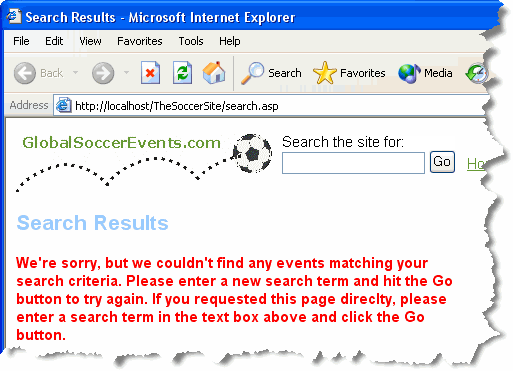
Figure 4 - The Errormessage You Get When You Request the Search Page Directly
-
Type in a search string in the text box and hit the Go button. If there are events in the database that match your search criteria, you'll see those events listed in the Search page:
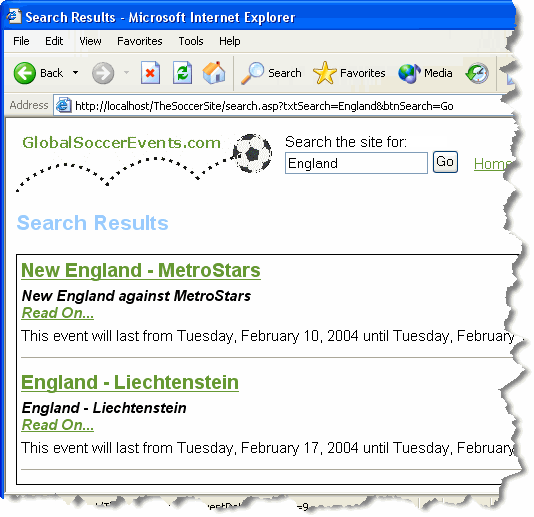
Figure 5 - Search Results for a Simple Search Term
-
Narrow down your search by using an AND query, for example England AND MetroStars. You'll see that with this search action, only one event is returned:
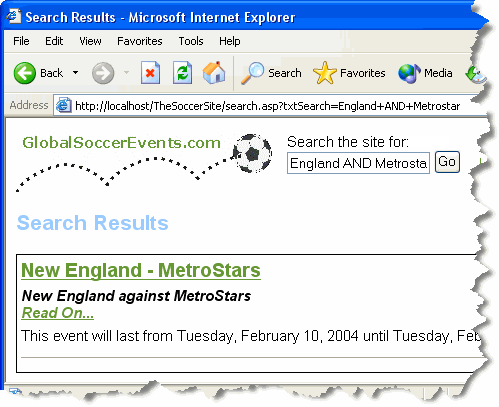
Figure 6 - Search Results for an Advanced Search Term Using the AND Operator
How It Works
At the top of the page, the code tries to retrieve the search term the user typed in from the QueryString:
Dim MyWhereClause
If Len(Request.QueryString("txtSearch")) > 0 Then
MyWhereClause = ParseSearchTerms(Request.QueryString("txtSearch"))
Else
MyWhereClause = " AND 1 = -1"
End If
%>
If there is no QueryString, the WHERE clause is set to AND 1 = -1. This is bit of a trick to make sure that no records are returned when the search page is accessed directly. Since 1 will never equal -1, the database will not return any records when this search is performed. Alternatively, you could wrap the entire code that builds and fills the recordset inside an ASP If block that prevents the code from being executed when there is no valid search term.
If there is a search term, it is passed to the ParseSearchTerms method. This method will parse the search term, as explained in the article on www.4guysfromrolla.com, and then return the entire WHERE clause.
The biggest change compared to the original code by Scott Mitchell is that I have put the code that parses the search term inside a function, so it's easier to use and reuse on the page. Inside the function, the original search string (searchTerm) is split into separate parts based on the occurrences of AND in the string. Each of these individual search terms is then split on the OR keyword. Finally, each individual search term is added to the WHERE clause for each of the four columns you are searching in (Title, Summary, EventDescription and Keywords).
Let's see how the example you saw earlier turns out in the search term parser. Suppose your user searches for this: Ruud van Nistelrooy AND Nigel de Jong. You'll the end up with the following WHERE clause:
Summary LIKE '%Ruud van Nistelrooy%' OR
EventDescription LIKE '%Ruud van Nistelrooy%' OR
Keywords LIKE '%Ruud van Nistelrooy%')
AND
(Title LIKE '%Nigel de Jong%' OR
Summary LIKE '%Nigel de Jong%' OR
EventDescription LIKE '%Nigel de Jong%' OR
Keywords LIKE '%Nigel de Jong%')
This may look a bit confusing at first, but this WHERE clause simply limits the list of events to those that have the text Ruud van Nistelrooy and the text Nigel de Jong in one of the four searched columns. By using the parentheses and the AND keyword, you can make sure that both conditions are met. Because OR is used between the individual table columns, the name could be located in any of these four columns. So, an Event with the name Ruud van Nistelrooy somewhere in the Title, but with Nigel de Jong in the EventDescription, would still be returned from the database with this query.
When the WHERE clause is completely constructed, the rest is easy, and pretty similar to the way the events.asp page works:
rsEvents.Source = "SELECT EndDate, ID, StartDate, Summary, Title FROM Events WHERE EndDate >= #" + Replace(rsEvents__Today, "'", "''") & "#"
The Source property for the recordset rsEvents is extended with the WHERE clause and an ORDER BY clause. When the recordset is opened, the entire SQL statement stored in the Source property is executed, and the records matching the search criteria will be returned.
You may have noticed that at the beginning of the ParseSearchTerms method, I replaced some illegal characters in the search term with less harmful characters. This is to minimize the risk of SQL Injection. It's beyond the scope of this article to get into SQL Injection, but I encourage you to read this white paper about it. It's by far the most thorough document on the subject that I know of.
The rest of the page is exactly the same as the events page. A dynamic table displays the records from the recordset rsEvents in a pageable list. Next and Previous links allow you to navigate through the search results.
Summary
This article has shown you how you can add a simple search engine to your Web site. Of course it is not as advanced and full featured as real search engines, like Google, but for smaller Web sites it will be more than enough. By supporting simple boolean queries (you can use AND and OR to refine the search terms), you're offering your visitors a good-enough solution to search the event information on your site.
The solution I have presented in this article can easily be enhanced. First of all, you can make it look a little better. Because I wanted to focus on functionality rather than design, the search text box and button look rather dull. You may also come up with a more appropriate location for the search box.
Second, you could enhance the searching mechanism. For instance, you could create an Advanced Search page that displays a drop-down with the available categories, and text boxes for the start and end date of the events. This way, your visitors can limit their search to those events from a specific period and category.
To take full advantage of the search engine presented in this article, you'll need to fill the Keywords column of the Events table in the database. This also means you'll need to modify createEvent.asp and updateEvent.asp. On these pages, you'll need to modify the HTML form and add a text area for the Keywords column, so your administrators can enter keywords for the events as they create or update them.
Acknowledgements
I'd like to thank Anne Ward for presenting me the idea for this article and for the list with requirements for the Search Engine. I hope you'll have as much fun reading and using this article, as I had writing it, Anne.... ;-)
Download Files
Where to Next?
Wonder where to go next? You can post a comment on this article.
Links in this Document
| Doc ID | 241 |
| Full URL | https://imar.spaanjaars.com/241/searching-thesoccersite-with-dreamweaver-mx |
| Short cut | https://imar.spaanjaars.com/241/ |
| Written by | Imar Spaanjaars |
| Date Posted | 02/05/2004 16:39 |
| Date Last Updated | 02/06/2004 12:02 |
| Date Last Reviewed | 12/07/2006 18:35 |
Comments
Talk Back! Comment on Imar.Spaanjaars.Com
I am interested in what you have to say about this article. Feel free to post any comments, remarks or questions you may have about this article. The Talk Back feature is not meant for technical questions that are not directly related to this article. So, a post like "Hey, can you tell me how I can upload files to a MySQL database in PHP?" is likely to be removed. Also spam and unrealistic job offers will be deleted immediately.
When you post a comment, you have to provide your name and the comment. Your e-mail address is optional and you only need to provide it if you want me to contact you. It will not be displayed along with your comment. I got sick and tired of the comment spam I was receiving, so I have protected this page with a simple calculation exercise. This means that if you want to leave a comment, you'll need to complete the calculation before you hit the Post Comment button.
If you want to object to a comment made by another visitor, be sure to contact me and I'll look into it ASAP. Don't forget to mention the page link, or the Doc ID of the document.