Howto Force the Save As Dialog in the Browser
This default behavior may not always be what you want. In some scenario's, it's useful to have the user download and save the file, instead of displaying it in the browser. This is a common requirement for files like images, Word documents, spread sheets and so on. This article will demonstrate you how you can force the client browser to present the Save As dialog, so your users can download the file and save it on their local hard disk.
Update - 02/11/2004
On 02/05/2004, Johnson Davis e-mailed me a work around for the problems with Netscape browsers like Netscape 7.0. If you move the download file to a sub folder, called /Downloads for example, and then make the download file the default file for the folder (in IIS this is usually done by renaming the file to default.asp, but you could also change the IIS settings so it uses your filename as the default file), the browser will look at the proposed attachment name instead of the name of the download file. So, in short, this is what you need to do:
- Create a folder called /Downloads
- Move the download file for this article (DownloadFile.asp) to the new Downloads folder and rename it as Default.asp
- Request the file in the browser by using http://YourServer/Downloads/ (note the absence of the file name, Default.asp)
Thanks for the tip, Johnson!
Prerequisites
The sample code presented in this article uses an ADODB.Stream object which is available in ADO since version 2.5. All sample code is in ASP, so obviously you need a server running ASP.The Complete Code
You can take a look at the complete code by following this link. It will open in a new browser window, so it's easy to follow along with the explanation.Forcing the download
To force the browser to display the Save As dialog, you'll need to fool it a bit. When you open a file in your browser by clicking a link or by typing in an URL in the Address bar, the browser examines the content type of the file you are requesting. Based on this content type, the browser determines what action to take. It searches a list of "registered applications" to see if one of them is set up to handle the requested content type.If, however, you pass the browser a content type it doesn't know about, it automatically presents you with the Save As dialog. Changing the content type is easy in ASP; simply set the ContentType property of the Response object to application/x-unknown:
Dim FullFileName
FileName = "MyWordDocument.doc"
FullFileName = "C:\Webfiles\MyWordDocument.doc"
The Binarywrite method will write out a a variant array of unsigned one-byte characters. To get this Variant array, you can use an ADODB.Stream object. For easier access to the Stream object, I created a function called GetBinaryFile that instantiates and initializes this object. As a parameter it expects the full location of the file on disk, for example: C:\Webfiles\MyWordDocument.doc. For the sake of simplicity, the function itself is included in the ASP page, but you can place this function in an include file, so other pages can access it as well.
"attachment; filename=" & chr(34) & FileName & chr(34)
Response.Binarywrite GetBinaryFile(FullFileName)
Const adTypeBinary = 1
Dim objStream
Set objStream = Server.CreateObject("ADODB.Stream")
objStream.Open
objStream.Type = adTypeBinary
objStream.LoadFromFile (FileSpec)
GetBinaryFile = objStream.Read()
Set objStream = Nothing
End Function
Providing Access to the File
This example uses a hard coded filename for the file you want to stream to the browser. In a real site, this is not a very useful solution.Instead, you can make this page dynamic so you can pass it the ID of a file you want to download through the QueryString. You can then transform this ID into a filename through a database lookup, a textfile, a Select Case statement, or any other solution you can come up with. The following code demonstrates the general principle:
FileID = Request.QueryString("ID")
If Len(FileID) > 0 Then
' Pass the ID to a database and retrieve the filename
' FullFileName = Get the FileName from the Database
Else
'Invalid ID
End If
' Rest of the download code with the GetBinaryFile method goes here.
<a href="Download.asp?ID=34">Or Download this other File Now</a>
Added Benefits of Using a Stream Object
By sending the file to the browser using the Stream object, it's easier to secure your files. Usually, when you want to provide a file your user can download, the file must be within the scope of your Web site, for example www.yoursite.com/Downloads/YourFile.doc. This means people who know the URL of the file, can download it directly. If you want to protect the file, you can ask for a username and password, before you redirect your users to this URL. If, however, people already know the URL or can guess its name, they can circumvent your protection mechanism. All they need to do is type in the URL of the file directly and they can get access to it.With the solution presented here, it's easier to block access to your file. All you need to do is check the user credentials (or any other business rules you may be using) at the top of the DownloadFile.asp. If you don't want your user to continue, simply redirect them away from the download file, as shown in the following pseudo code:
If UserOK Then
' Use the ID from the QueryString to lookup the FileName
' Stream the File to the Browser
Else
Response.Redirect("NoRights.asp")
Response.End
End If
Disadvantages of the Stream Method.
Not all browsers will handle the proposed filename correctly. When you download the file in Netscape 6.2 for example, this is what you'll see: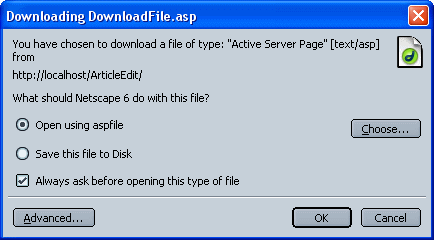
Netscape thinks its downloading an ASP file, instead of a Word Document. As soon as you click Save this file to Disk and then click OK, Netscape will use the proposed filename (MyWordDocument.doc) for the download.
Each browser deals with this differently; Mozilla and Netscape 7, for example, use the proposed filename, but append an .asp extension to it, as shown if the following figure (from Mozilla 1.4):
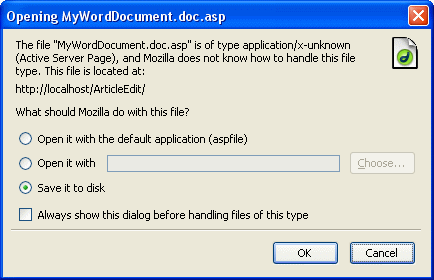
In fact, the problem with these browsers is even worse as they also use this .asp extension in the proposed filename in the Enter name of file to save to dialog box. Your users will need to manually rename the file by removing the additional extension to make it a valid file. More recent versions of Mozilla (version 1.6) handle the downloaded file correctly, and propose the MyWordDocument.doc as the filename.
Summary
The method to download files presented in this article can be useful in a number of circumstances. First of all, it will allow your users to download a file, instead of having it opened within their browser.Second, it allows you to put a tighter security mechanism in place; by validating the user before you stream the file, you can easily find out whether the user has access to the file.
The only drawback is that not all browsers handle the filename of the download correctly. If wide browser support is important to you, this solution is not very suitable. In other scenario's, like a company Intranet where you control the browser, this is an excellent way to control the files users can download from your site.
References
Download files
Where to Next?
Wonder where to go next? You can post a comment on this article.
Links in this Document
| Doc ID | 189 |
| Full URL | https://imar.spaanjaars.com/189/howto-force-the-save-as-dialog-in-the-browser |
| Short cut | https://imar.spaanjaars.com/189/ |
| Written by | Imar Spaanjaars |
| Date Posted | 10/21/2003 23:20 |
| Date Last Updated | 02/18/2004 12:54 |
| Date Last Reviewed | 12/08/2006 14:34 |
Comments
Talk Back! Comment on Imar.Spaanjaars.Com
I am interested in what you have to say about this article. Feel free to post any comments, remarks or questions you may have about this article. The Talk Back feature is not meant for technical questions that are not directly related to this article. So, a post like "Hey, can you tell me how I can upload files to a MySQL database in PHP?" is likely to be removed. Also spam and unrealistic job offers will be deleted immediately.
When you post a comment, you have to provide your name and the comment. Your e-mail address is optional and you only need to provide it if you want me to contact you. It will not be displayed along with your comment. I got sick and tired of the comment spam I was receiving, so I have protected this page with a simple calculation exercise. This means that if you want to leave a comment, you'll need to complete the calculation before you hit the Post Comment button.
If you want to object to a comment made by another visitor, be sure to contact me and I'll look into it ASAP. Don't forget to mention the page link, or the Doc ID of the document.